Zoho Virtual Fiscalisation
Introduction
Welcome to the QXZ documentation for Zoho integration. This comprehensive guide provides detailed instructions on how to use our virtual fiscalization solution with Zoho accounting software. QXZ serves as a powerful bridge between the Zoho accounting system and fiscal authorities, automating the fiscalization process to ensure compliance while minimizing manual effort.
Zoho Accounting Integration
Prerequisites
Before getting started with the Zoho integration, please ensure you have:
- QXZ application installed on your system
- Active Zoho account with administrator privileges
- Stable internet connection for API communication
- Valid fiscal credentials provided by your tax authority
Desktop Access
After completing the installation process, a QXZ interface shortcut will be created on your desktop for convenient access. Simply double-click this icon to launch the application.

Background Operation
When you run the QXZ interface, it operates silently in the background to monitor your Zoho account. This background service continuously checks for new invoices that require fiscalization without interrupting your normal accounting workflow.
The background service:
- Establishes a secure connection with your Zoho account
- Monitors for new invoice creation events
- Processes fiscalization requests automatically
- Updates invoice status after successful fiscalization
- Generates fiscal receipts as required
Accessing the QXZ Interface
You can access the QXZ interface controls at any time by:
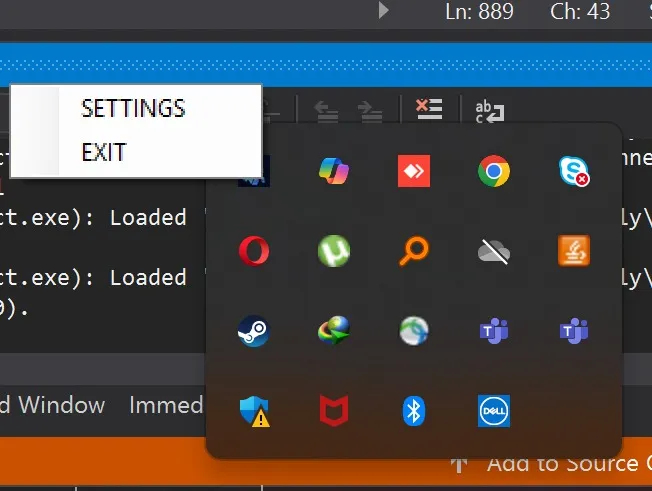
- Clicking the hidden icons arrow at the bottom right corner of your machine (system tray)
- Locating the QXZ icon among the hidden icons
- Right-clicking on the QXZ icon to reveal the context menu
The context menu provides two main options:
- Run Z Report: Generate a fiscal Z report to either open or close the fiscal day
- Settings: Configure your QXZ application preferences and settings
Configuration Settings
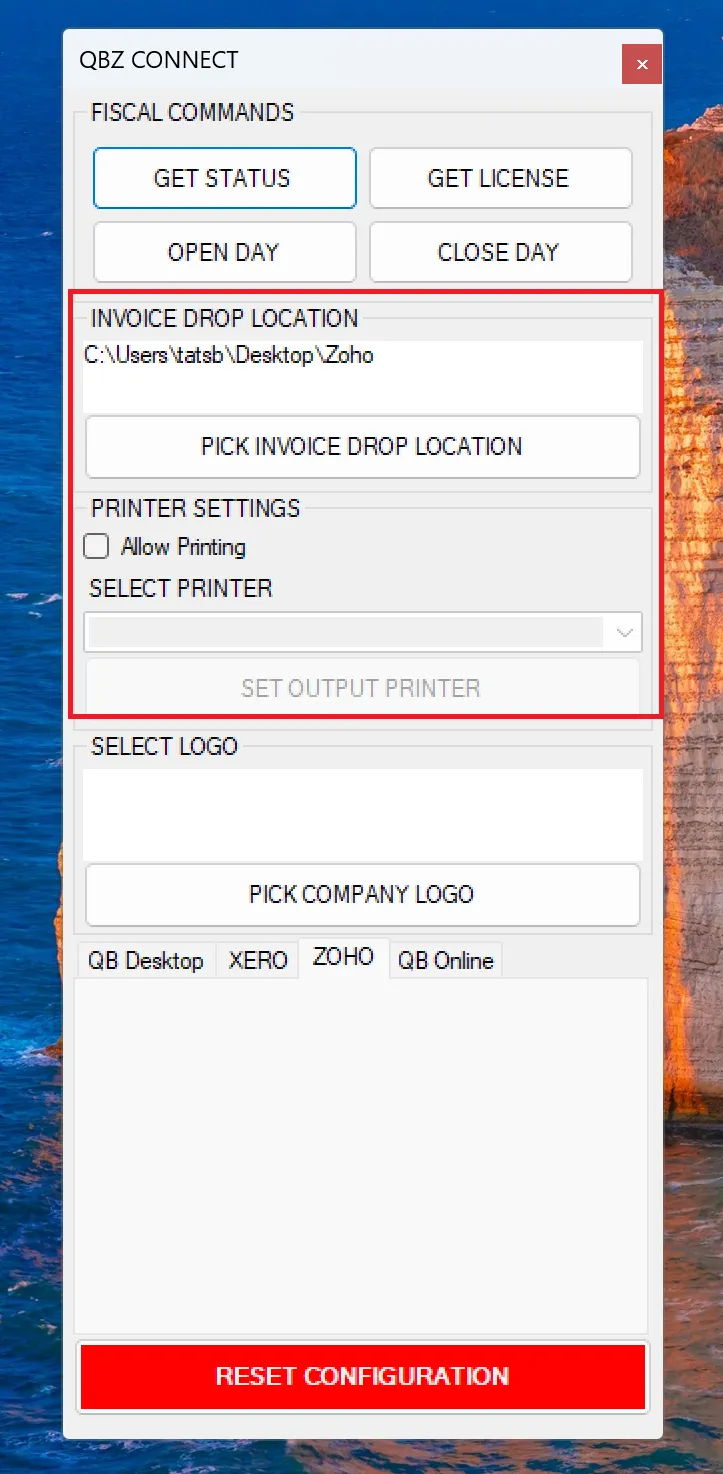
In the Settings panel, you can customize various aspects of the QXZ application:
- Printer Settings
- Select your preferred printer for fiscal receipts
- or select the location you want the receipts to be dropped after fiscalisation
Using the Integration
Once the QXZ interface is running in the background, the integration process becomes seamless:
- Login to your Zoho account through your normal web browser
- Create invoices and credit notes as you normally would
- QXZ automatically handles the fiscalization process in the background
Fiscalization Status Field
A key element of the integration is the Fiscalized field that appears in your Zoho invoices. This field has a default value of “No” for newly created invoices.
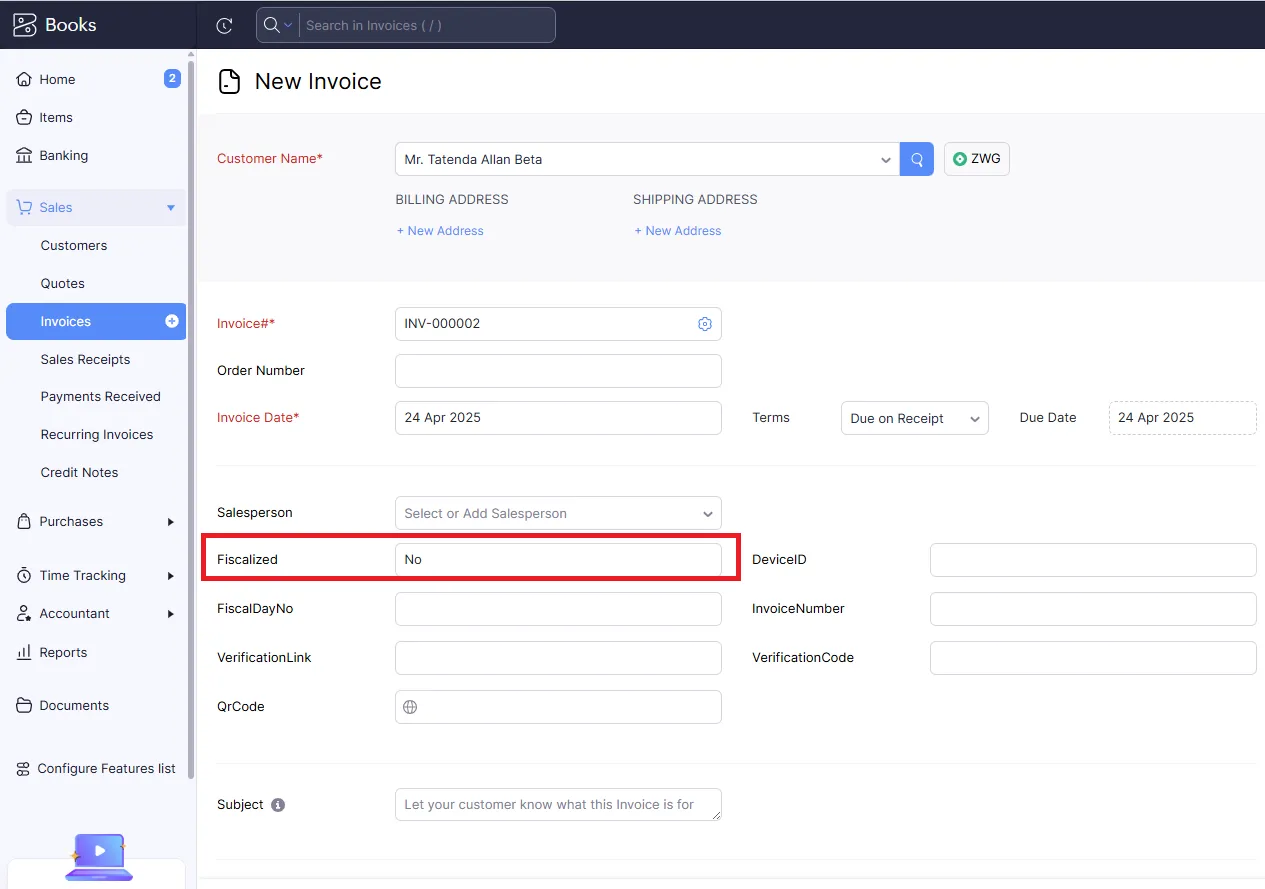
The QXZ interface continually monitors this field and processes any invoice with a “No” status. This automated system:
- Identifies invoices requiring fiscalization
- Securely transmits invoice data to fiscal authorities
- Obtains fiscal confirmation data
- Updates the invoice with fiscalization information
- Changes the status from “No” to “Yes” once complete
Fiscalization Process Status
You can monitor the fiscalization status directly in your Zoho interface. The following status changes indicate the progress:
- No: Invoice created but not yet fiscalized
- Yes: Successfully fiscalized
Fiscalized Invoice Identification
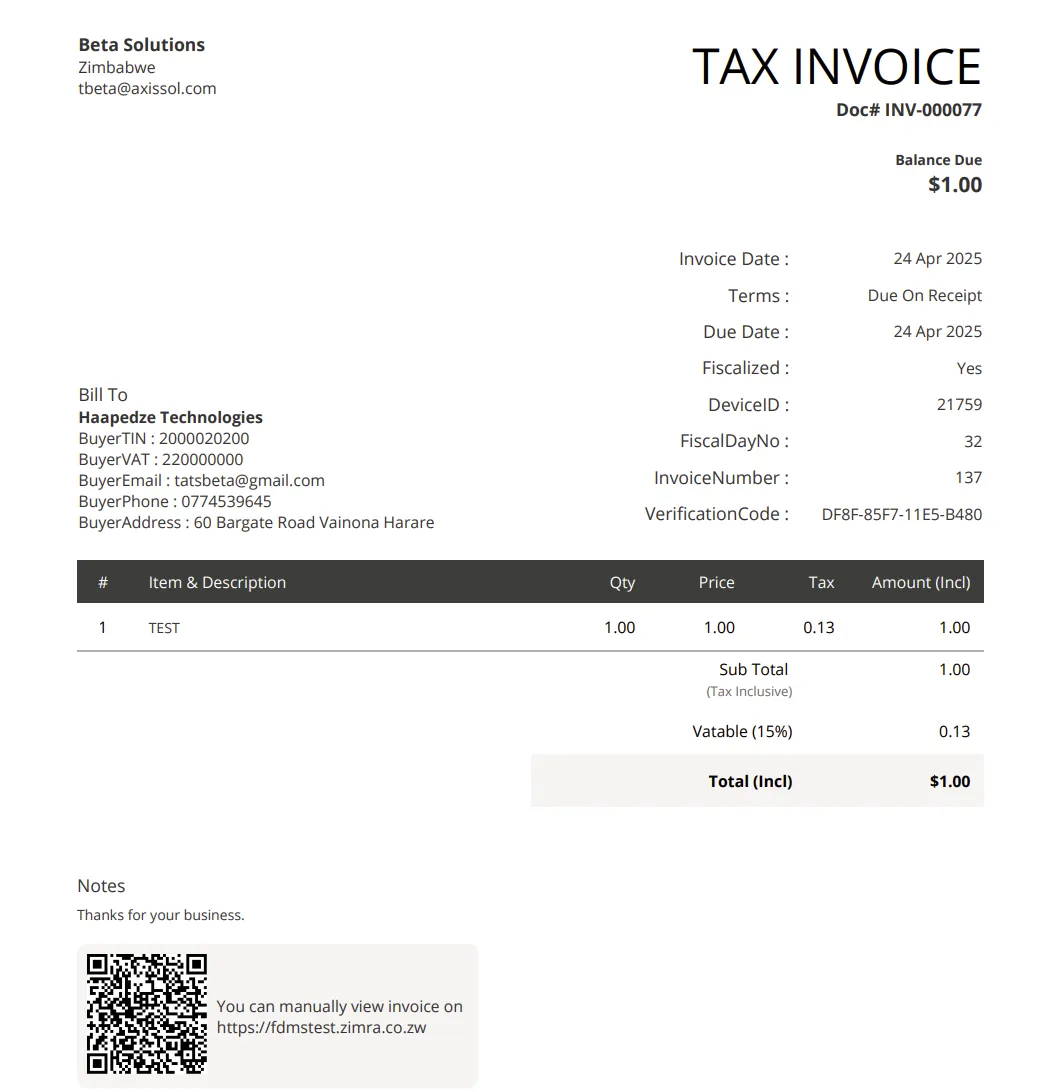
After successful fiscalization, the invoice is automatically updated with official fiscalization elements:
- QR Code: A machine-readable code containing verification information
- Fiscal Day Number: A unique number assigned by the fiscal authority
- Verification Code: Text confirming fiscal validity
- Fiscal Device ID: ID of the registered fiscal device
Credit Note Processing
QXZ handles credit notes with the same process as invoices but ensures they are properly marked as credit transactions in the fiscal system. This maintains the integrity of your fiscal reporting while allowing for normal business adjustments.